
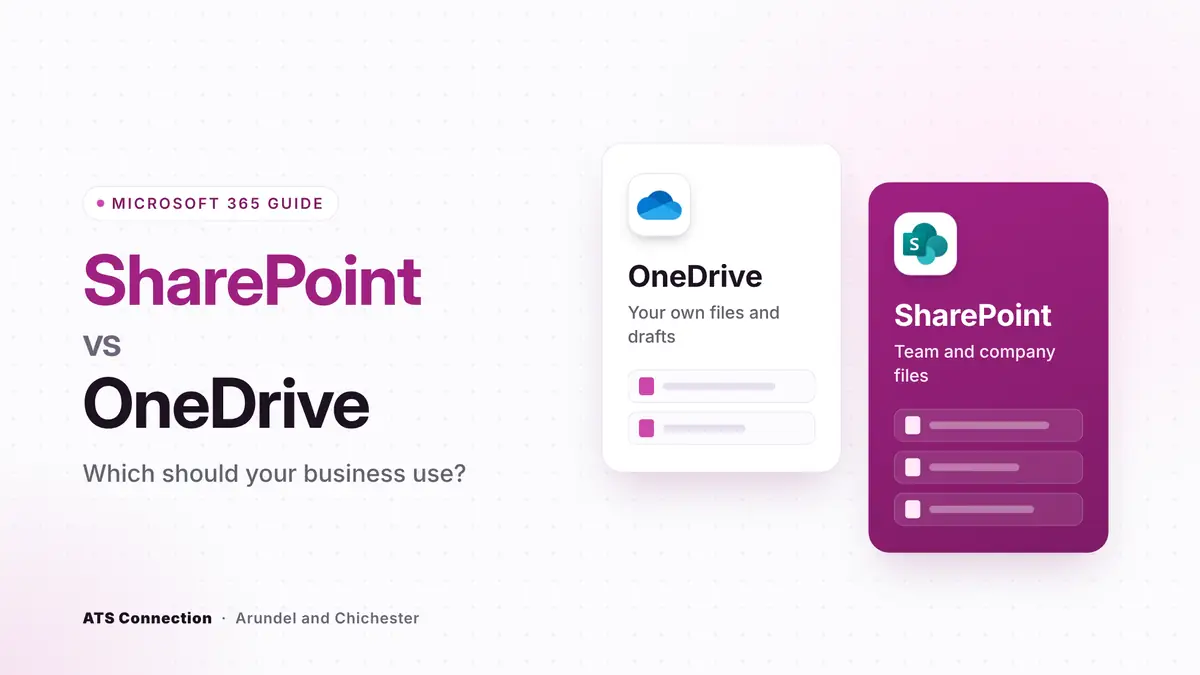
The short answer: use OneDrive for your own work files and SharePoint for anything the team shares. OneDrive is personal storage tied to one person’s account, and it is deleted after that person leaves unless someone acts. SharePoint holds files that belong to the business, organised into sites with their own permissions, and it is where Microsoft Teams keeps the files shared in channels. Both come with Microsoft 365 Business Basic, Standard and Premium, both sync to your laptop through the same OneDrive app, and neither is a backup on its own.
Last updated: 19 November 2026. Storage and retention figures checked against Microsoft Learn on that date.
In this guide:
- SharePoint vs OneDrive at a glance
- What is OneDrive for?
- What is SharePoint for?
- Where Microsoft Teams fits in
- What happens when someone leaves
- Storage limits
- A simple rule for where files go
- Is SharePoint or OneDrive a backup?
- Frequently asked questions
SharePoint vs OneDrive at a glance
| OneDrive | SharePoint | |
|---|---|---|
| Best for | Your own drafts and working files | Team and company files that others need |
| Who owns the files | The individual user | The business, through a site |
| Who can see them | Only you, unless you share a file or folder | Everyone with access to the site or library |
| Storage on Business plans | 1TB per user | A shared pool: 1TB plus 10GB per licence |
| When someone leaves | Deleted 30 days after the account is deleted, by default | Stays where it is |
| Used by Teams for | Files shared in chats | Files shared in channels |
| Syncs to your laptop through | The OneDrive app | The OneDrive app |
What is OneDrive for?
OneDrive is each person’s own cloud storage in Microsoft 365. On the Business plans every user gets 1TB. It is the right home for drafts, personal working files and anything that is not ready to share. You can share a file or folder from OneDrive with a colleague, but the file still belongs to you.
OneDrive can also protect the folders on your laptop. Known folder move redirects your Desktop, Documents and Pictures folders into OneDrive, so a lost or broken laptop does not take your files with it. It is one of the first things we turn on when we set up a new device.
What is SharePoint for?
SharePoint is where files that belong to the business should live. It is organised into sites, usually one per team, department or project, and each site has document libraries with their own permissions. When someone joins the finance team, you add them to the finance site and they see everything they need; when they move on, you remove them and their access goes with it.
SharePoint can also host an intranet: news, policies, forms and links in one place. If you are replacing an old file server or a shared drive, SharePoint is usually its natural successor. Our guide to what SharePoint is goes into the features in more detail.
Where Microsoft Teams fits in
Teams does not have its own file storage. When you share a file in a Teams channel, it is stored in the SharePoint site behind that team. When you share a file in a private chat, it is stored in your own OneDrive and shared with the people in the chat. That is why a file shared in a chat can disappear when the person who sent it leaves, while a file in a channel stays put.
The practical rule is simple: anything the team will need again belongs in a channel, not a chat.
What happens to a leaver’s OneDrive?
This is where the choice really matters. According to Microsoft, when a user account is deleted their OneDrive is kept for 30 days by default. Their manager, or a secondary owner, is given access and is emailed seven days before it is deleted. After that it moves to a recycle bin for 93 days, where only an administrator can restore it. Administrators can extend the retention period to anywhere from 30 to 3,650 days, and retention policies can keep content for longer still.
The risk is that business files saved only in someone’s OneDrive, such as client folders, contracts or a spreadsheet the whole office relies on, quietly go when that person’s account is deleted. Two habits avoid it:
- Keep shared and business-critical files in SharePoint from the start.
- Make a leaver’s OneDrive part of your offboarding checklist: check it, move anything the business needs into SharePoint, then delete the account.
SharePoint and OneDrive storage limits
- OneDrive: 1TB per user on Microsoft 365 Business Basic, Standard and Premium.
- SharePoint: a pool shared by the whole organisation of 1TB plus 10GB for each licence you buy. A business with 20 licences has 1.2TB to share across all its sites. OneDrive storage does not count against it.
- File size: up to 250GB per file, whether it is uploaded to OneDrive, SharePoint or the Files tab in Teams.
If your organisation goes over its SharePoint storage, Microsoft says sites can become read-only, so it is worth keeping an eye on usage as files build up. Extra SharePoint storage can be bought if you need it.
A simple rule for where files go
Ask one question: would anyone else need this file if I were off sick tomorrow?
- No: OneDrive. Drafts, personal notes, your own working copies.
- Yes: SharePoint, or a Teams channel, which is SharePoint underneath. Client and project folders, templates, policies, finance and HR files.
A sensible structure for a small business is one SharePoint site or Team per department, with a small number of libraries in each, and permissions set at the site level rather than on individual folders. It is easier to understand, easier to secure and much easier to hand over.
Is SharePoint or OneDrive a backup?
Not on its own. Both keep version history and a recycle bin, which helps when someone overwrites or deletes a file by mistake. But if an account is compromised and files are encrypted or deleted, or a mistake goes unnoticed for longer than the recycle bin keeps things, you need a copy held separately from Microsoft 365. An independent Microsoft 365 backup covers OneDrive, SharePoint, Teams and email, with restores you can test. Our backup and disaster recovery page explains how we handle it.
At ATS Connection we are a Microsoft Partner, and we set up SharePoint and OneDrive for businesses across Sussex, Surrey and Hampshire from our offices in Arundel and Chichester. We plan the sites and permissions, move files across from old servers and shared drives, build leavers into your offboarding and back it all up independently. Ask us for a quote or see our Microsoft 365 support.
Frequently asked questions
What is the difference between SharePoint and OneDrive?
OneDrive is personal storage for one user’s work files. SharePoint is shared storage for team and company files, organised into sites with their own permissions. Use OneDrive for your own drafts and SharePoint for anything others need.
Should I save files to OneDrive or SharePoint?
Save to SharePoint, or a Teams channel, if anyone else would need the file when you are away. Save to OneDrive if it is a personal draft or working copy. Business-critical files should not live only in one person’s OneDrive.
Does Microsoft Teams use SharePoint or OneDrive?
Both. Files shared in a Teams channel are stored in the SharePoint site behind the team. Files shared in a private chat are stored in the sender’s OneDrive.
What happens to someone’s OneDrive when they leave?
By default Microsoft keeps it for 30 days after the user account is deleted, gives their manager access and sends a reminder seven days before deletion. After that it sits in a recycle bin for 93 days. Administrators can extend the retention period to up to 3,650 days.
How much storage do SharePoint and OneDrive include?
On Microsoft 365 Business plans each user gets 1TB of OneDrive storage. SharePoint gives the organisation a shared pool of 1TB plus 10GB per licence. Individual files can be up to 250GB.
Do I need to back up SharePoint and OneDrive?
Yes. Version history and the recycle bin help with everyday mistakes, but they are not a separate copy. An independent Microsoft 365 backup protects you against ransomware, compromised accounts and deletions that are not noticed in time.
Sources
- Microsoft Learn: SharePoint limits (storage and file size)
- Microsoft Learn: OneDrive retention and deletion
- Microsoft Learn: set the OneDrive retention for deleted users
- ATS Connection: Microsoft 365 business prices and what each plan includes
Free • 12 minutes • Written PDF report
Who actually holds the keys to your systems?
List the systems your business runs, answer plain-English questions about how they are controlled, and get a report with a red, amber and green rating for every area and what to fix first. Nothing on your systems is touched.
Cyber Essentials certified · Microsoft Partner · rated 5.0 on Google